What it does and what it is used for
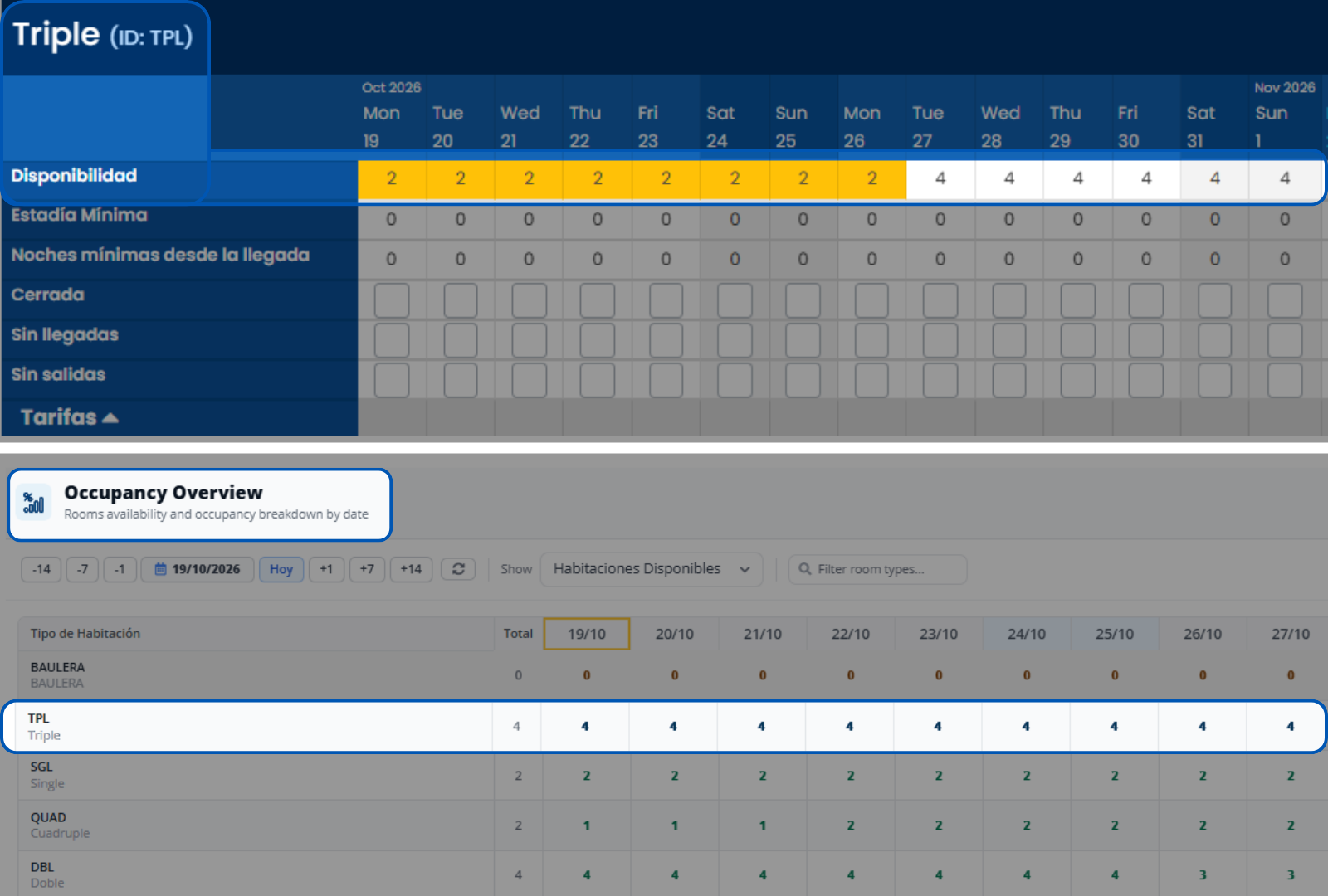
Availability Update does not change real availability: it defines how many units of a room type a single booking can take. Real availability updates automatically based on vacant rooms, so there is no need to enter it. When this option is used, the grid cell appears in yellow and shows that maximum quantity.
It is a sales strategy tool. For example, it allows you to sell one unit at a time. It also helps if the hotel uses Smart Pricing: by selling only a few units at a time, the module has time to calculate availability and adjust prices.
It is a cap, not a fixed quantity: with 2 entered, each booking can take 1 or 2 units. If you enter 0, sales for that room type are closed for those dates. And if you enter more units than you have, they are not added: only the real units are sold.
Example
A Triple room has 4 units available and 2 is entered in “Availability Update”. The Rates and Availability grid shows 2 in yellow: that is the maximum a booking can take. Occupancy Overview (button on the top bar), on the other hand, still shows 4, which is the real availability.
Edit or remove the maximum quantity
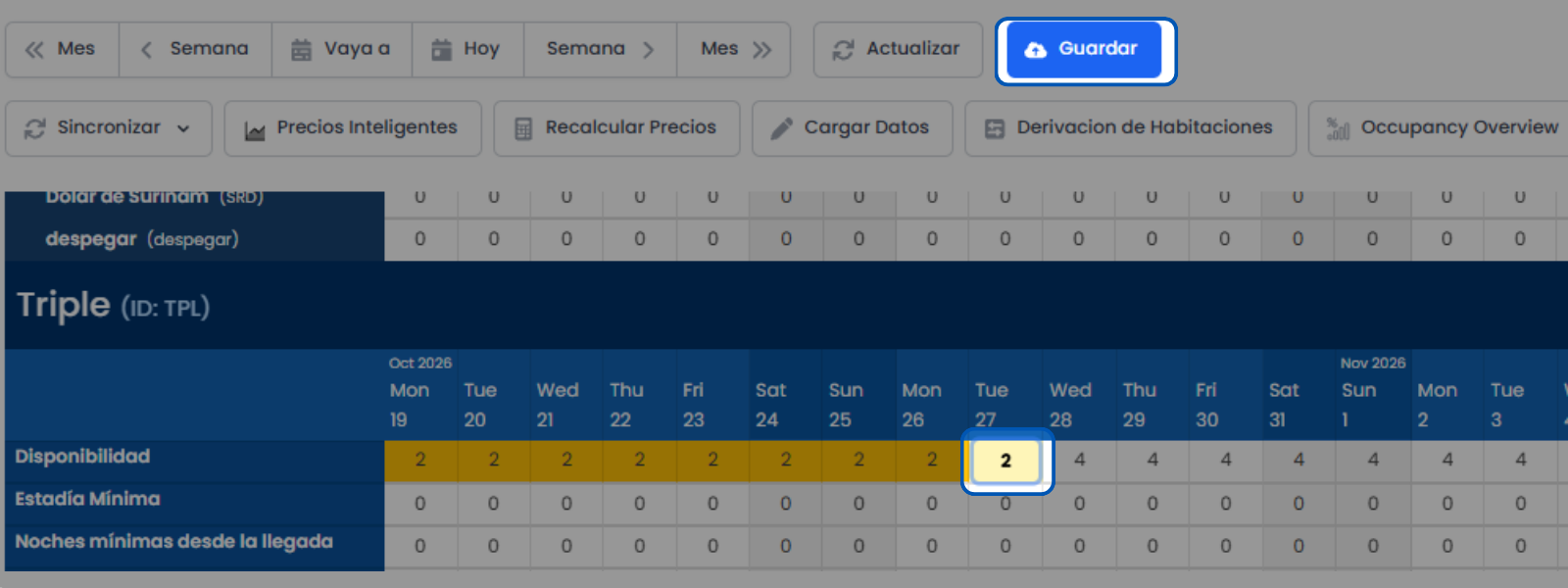
To edit it, there are two ways. From the grid, click the Availability cell for the room type and date, enter the number, and click “Save” on the top bar. Confirm in the “Save data” window.
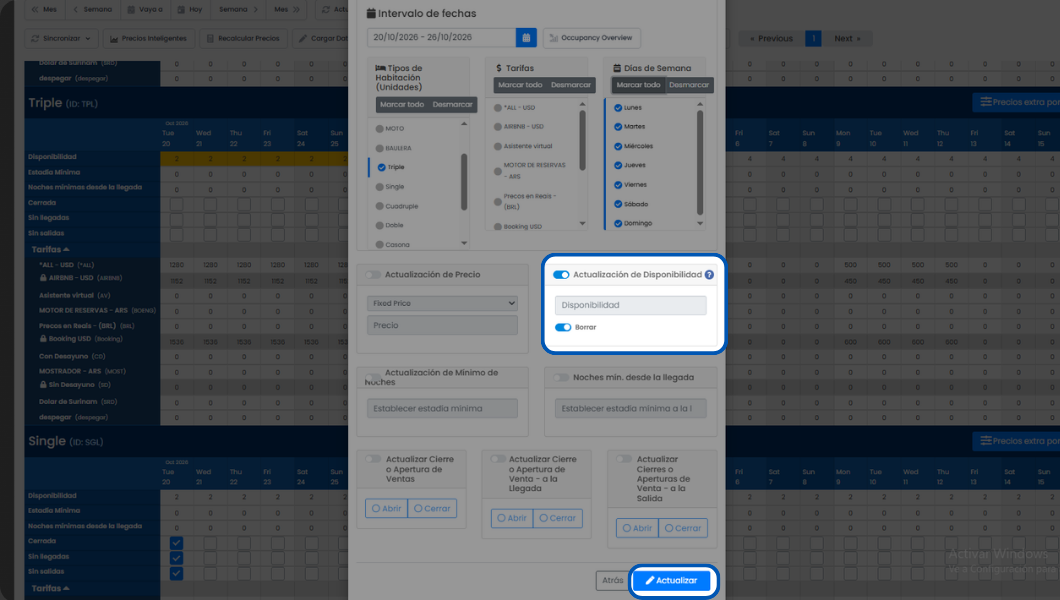
From Load Data, enable “Availability Update”, enter the number, and click “Update”; this way you can apply it to multiple dates and room types at the same time.
To remove it, open Load Data, choose the dates and the room type, enable “Availability Update”, check “Delete”, and click “Update”. There is no need to enter any number. The cell stops being yellow and shows real availability again.
Entering in the grid the same number as real availability does not remove the yellow: to remove it, use “Delete”.
Reduce from real availability
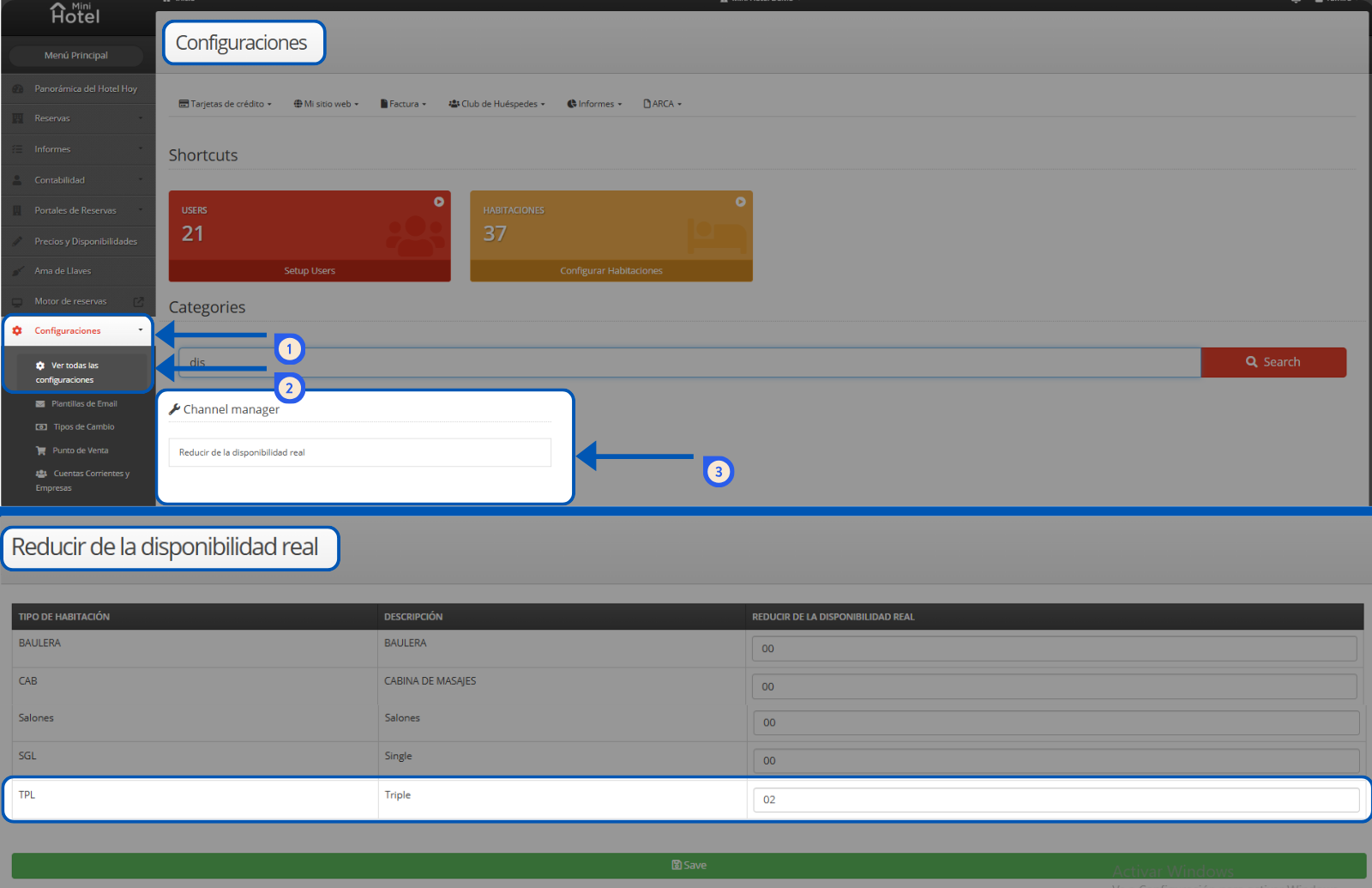
If what you want is to send fewer units to OTAs without changing real availability, use “Reduce from real availability”, in Settings > View all settings. Look for Reduce availability and you will find it under the Channel manager category. It subtracts a fixed quantity per room type from what is sent to OTAs, and it does not change the real availability you see in the system.